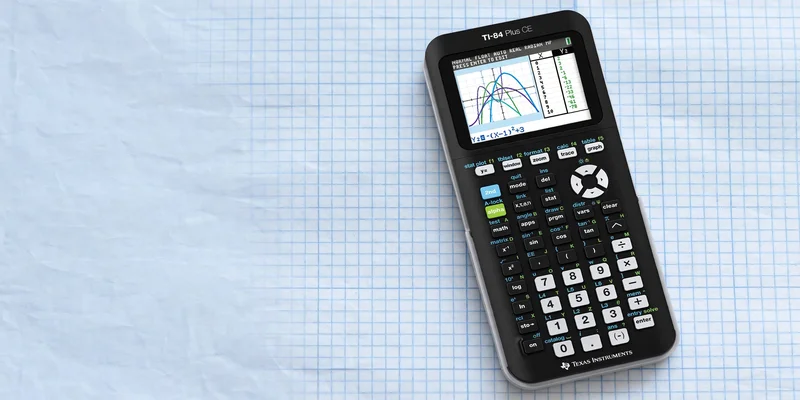

Using a TI-84 calculator can be very helpful for graphing functions. However, it can be difficult to know which buttons to press and which options to choose. In this guide, you will learn exactly how to graph on a TI-84, as well as how to find important points on a graph. You will also learn how to use a TI-84 online if you do not have a physical TI-84 to use.
You'll first need to press the Y= button on your TI-84 calculator, then type in the equation you want to graph. For example:
Y1= x²+2x+1
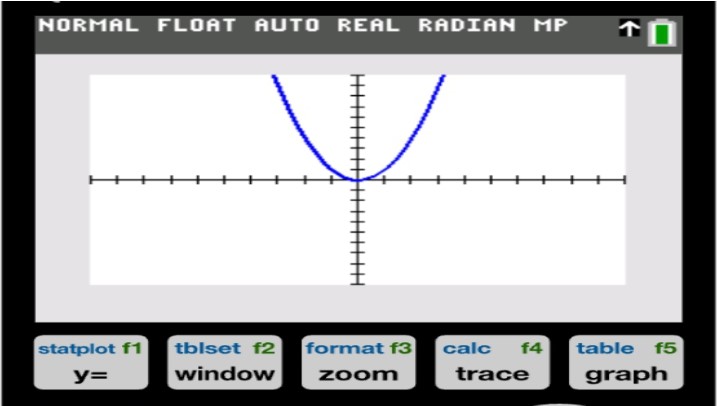
Next, press the WINDOW button and set it to the appropriate settings so you can see the full graph. After that, press GRAPH to display the equation. You can also press TRACE to see the value of the equation at different points along the curve. If the graph doesn't look right, try adjusting it with ZOOM.
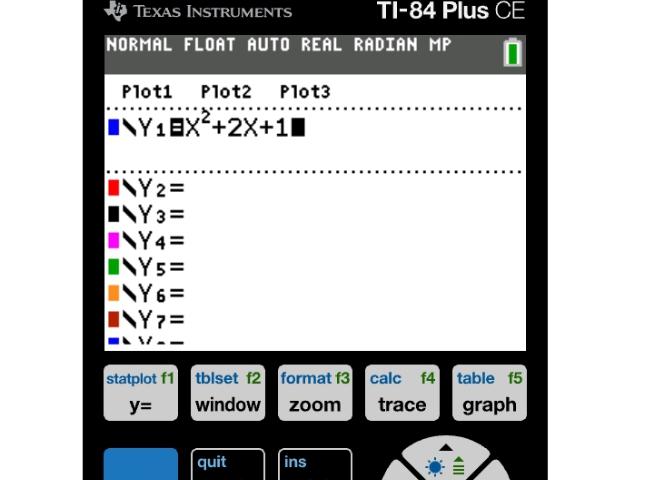
The TI-84 graphing calculator can display a wide range of mathematical functions. Plus, it allows you to enter and graph multiple equations at the same time.
Function | Example | Shape |
Linear | y = 2x + 3 | Straight line |
Quadratic | y = x² | Parabola |
Cubic | y = x³ | S-Shaped curve |
Exponential | y = 2ˣ | Rising curve |
Trigonometric | Y=sin(x) | Wave |
Input equations into Y1, Y2, Y3, and the other lines. Press GRAPH to view them all on the same display to see how each of them relates to each other.
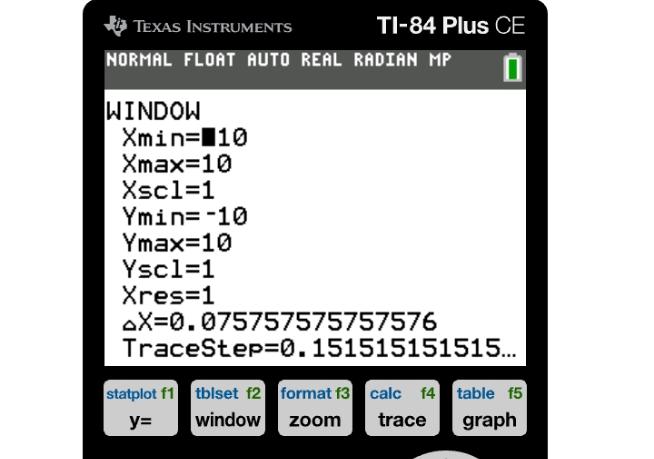
Your first graph may not appear on the screen the way you want it to. The WINDOW menu allows you to do that. Set the Xmin and Xmax to determine how far your graph should spread out horizontally. Set the Ymin and Ymax to determine how far your graph should spread out vertically. You can also adjust your Xscl and Yscl, which determine the spacing of the marks on your graph.
The ZOOM menu is helpful if you would like to view a certain type of graph more clearly. For example, you could choose Zoom Standard to view your graph using the most common graphing window. The TRACE button is helpful if you are trying to look at certain areas of your graph. Simply use the arrow keys to move your cursor to the desired location.
You don't have to use the real thing! A Ti 84 calculator online is another option. An online version can help you to get to know the calculator better. You can graph and do other things using an online calculator. Try the TI-84 Calculator Online.
An online graphing calculator can be a great resource whether you have access to your own calculator or not. Students can also use this calculator to practice using their own TI-84 calculator on a computer or other device. A student would be able to use a TI84 online to perform math functions, such as:
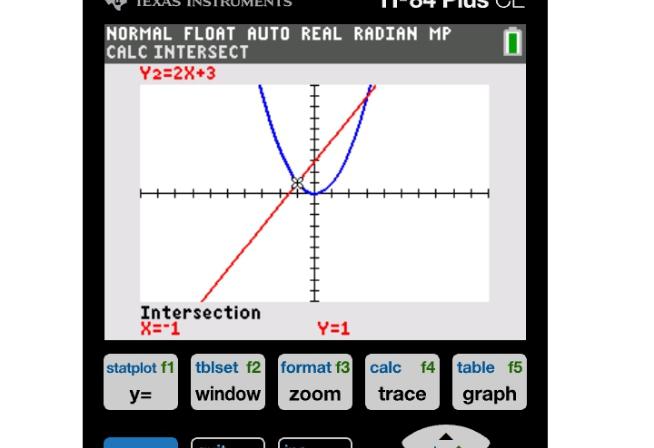
The TI 84 graphing calculator can be used to find important points on the graph. In order to do that, one can make use of the CALC menu.
Finding an intersection: Press 2nd, then TRACE to open the CALC menu, and select 5: Intersect. The calculator will ask "First curve?" — press ENTER. Then "Second curve?" — press ENTER. Finally, "Guess?" — move the cursor near the intersection point and press ENTER. The coordinates will then be displayed.
Finding a maximum or minimum: Press 2nd, then TRACE to open the CALC menu, and select 3: minimum or 4: maximum depending on what you need. Move the cursor to the left of the point and press ENTER, then to the right of the point and press ENTER again, then press ENTER once more to confirm your guess. The coordinate of the maximum or minimum point will be displayed.
These features allow one to examine a lot of interesting points related to the graph. This is especially useful in analyzing quadratic and polynomial functions. Therefore, the TI calculator can be used not only to plot graphs of functions but also to analyze them.
Keep these things in mind when using your calculator.
These are all time savers.
One will find that graphing on the TI-84 becomes much easier when one is familiar with the basic buttons. Simply go to Y=, type in the function, use WINDOW to set the desired display range, and hit GRAPH. Then, utilize such intuitive buttons as TRACE, ZOOM, and TABLE to analyze the results. In the absence of a physical device, one can always use an online TI-84 calculator.
Thus, with practice, one will be able to graph any function or equation of choice.
Yes. This ti84 online calculator is completely free to use.
A graphing TI-84 calculator is used for graphing functions, equations, and curves, as well as finding intersections, zeros, and maximum/minimum points.
Yes, an online graphing calculator can be accessed on various mobile devices.
A TI calculator refers to any calculator made by Texas Instruments, ranging from basic scientific models to advanced graphing calculators like the TI-84.

Matrices are essential in algebra, linear equations, and higher-level mathematics. Fortunately, a TI-84 calculator can perform a wide range of matrix opera...
TI-84 Calculator Online, along with the TI-83 Plus, TI-89 CAS graphing calculator, online graphing calculator and TI-30XS scientific calculator, provides students with versatile digital tools for solving equations, plotting graphs, and handling complex math problems. These calculators can be used directly in any browser without installation, making them perfect for math and science students looking for quick and easy solutions.


© 2026 — Revision. All Rights Reserved.