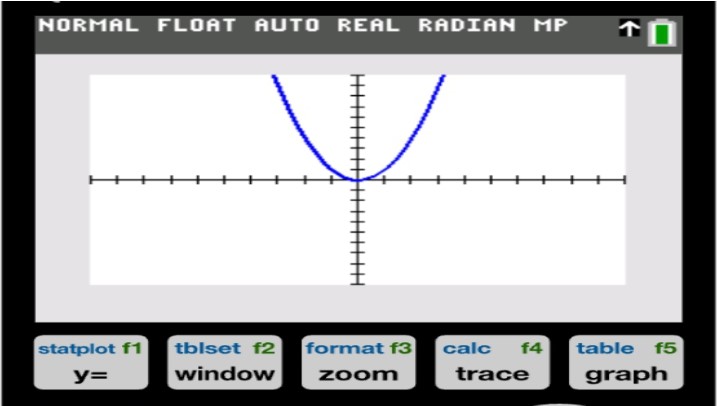


How to Use a TI-84 Calculator: Complete Beginner’s Guide
Getting started with the TI-84 calculator can feel a bit confusing because of its many buttons and menu options. It’s a graphing calculator that lets you perform basic calculations, solve equations, create graphs, and work with statistics and trigonometric functions.
Once you understand its basic controls and key functions, it becomes much easier to use. If you don’t have a physical calculator, you can also use a TI-84 calculator online. For this, you should follow the simple steps below.
Start by opening the online TI-84 calculator. The online version includes both the keypad and screen so that you can practice directly in your browser.
Take a look at the TI-84 Plus CE interface below (the steps in this guide apply to the standard TI-84 and TI-84 Plus CE alike):
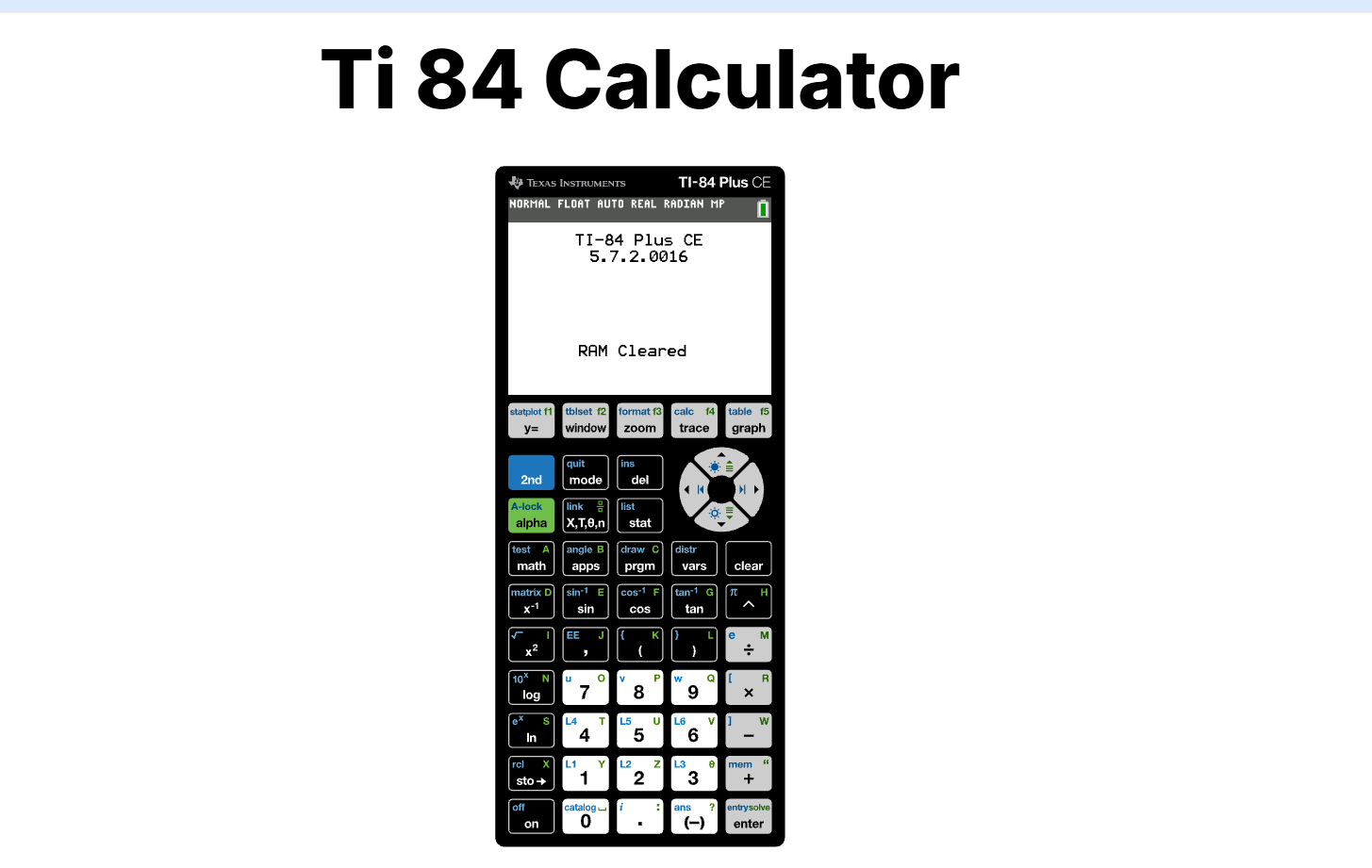
Don’t worry about learning every key right away. For now, these are the ones you’ll use the most:
Key | Function |
ON | Turns on the calculator |
2nd | Accesses the secondary function shown above the key |
ALPHA | Enters letters and additional characters |
MODE | Changes settings such as degree/radian mode |
Y= | Enters equations for graphing |
GRAPH | Displays the entered graphs |
ZOOM | Adjust the graph view |
TRACE | Check values and coordinates on the graph |
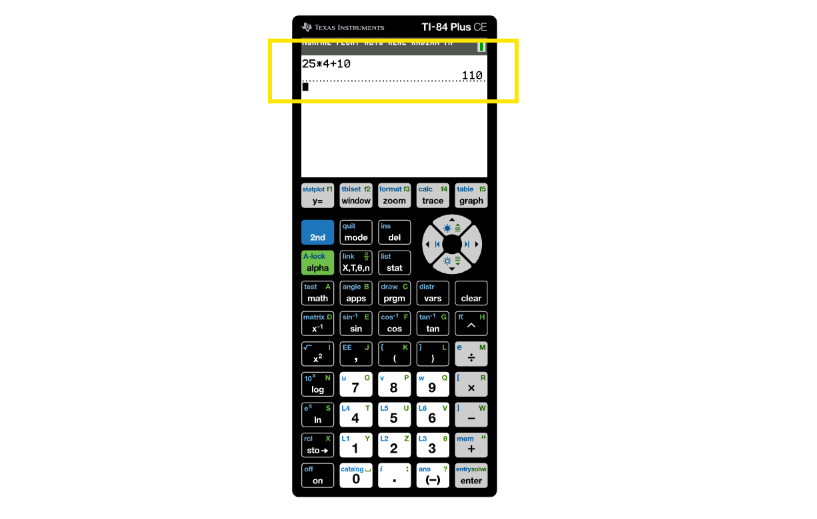
Simply type the expression on the home screen and hit ENTER to perform simple calculations. For example:
11 × 9 + 40
If a question includes parentheses, make sure you enter them correctly. For example, (10 + 2) ÷ 2 should be entered with parentheses around 10 + 2, using the ( and ) keys. Also, keep in mind that the negative sign and subtraction sign are two different keys. Use the (-) key (found near the bottom of the keypad) to enter a negative number, like (-)5, and use the separate − key only for subtraction, like 8 − 5. Mixing these up is one of the most common entry errors on the TI-84.
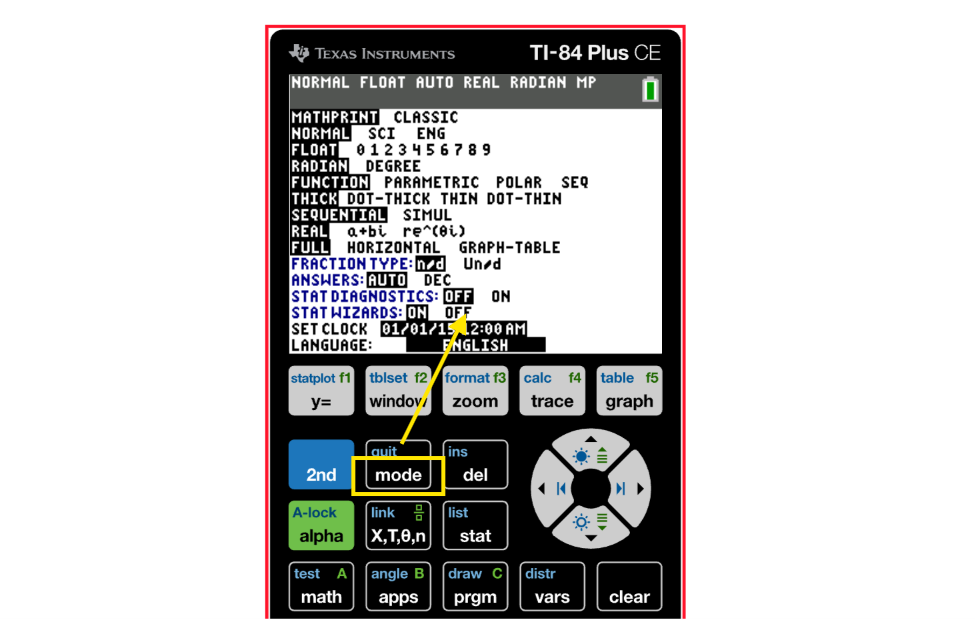
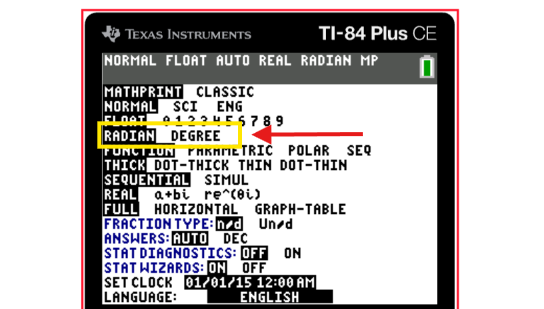
If you are solving trigonometry questions, it’s important to check the degree or radian setting. Using the wrong angle mode can give you an incorrect answer.
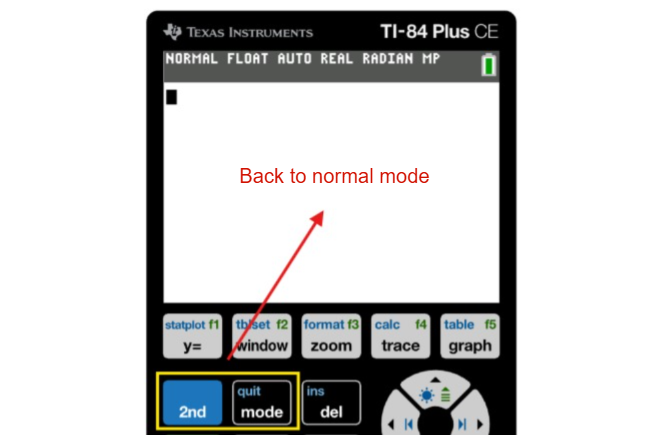
To change this setting:
Graphing is one of the most useful features of the TI-84. Let’s try a simple equation:
y = x² + 2x − 3
First, press Y= and enter the equation next to Y1. To enter X, use the X,T,θ,n key.
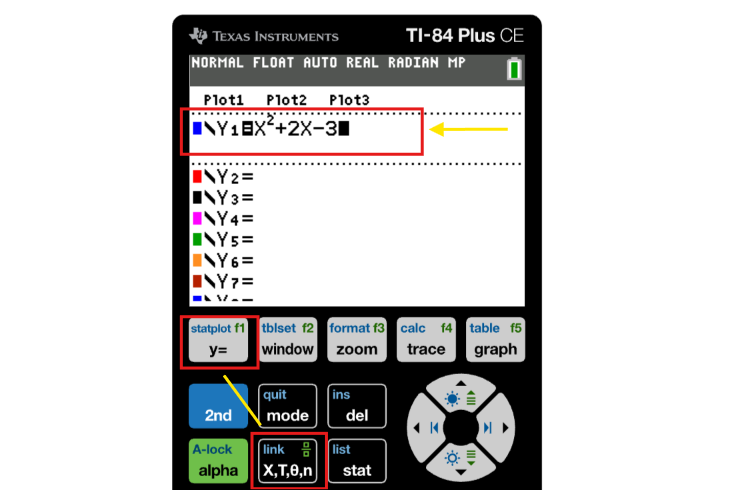
After entering the equation, press GRAPH. The calculator will display the equation on the graph screen.
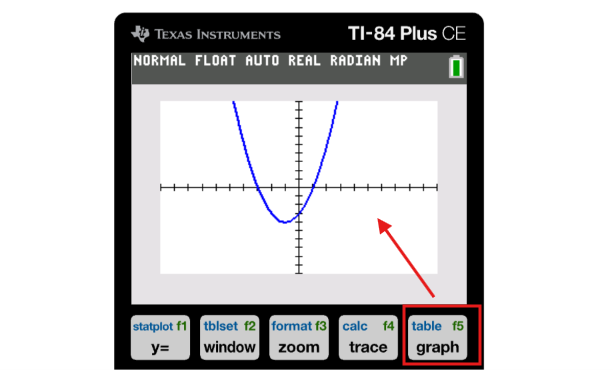
If the graph looks out of view, or part of it is missing from the screen, use ZOOM or WINDOW to adjust the view.
For a standard graph view, select ZOOM → 6:ZStandard. This resets the viewing window to a standard range, which usually fixes graphs that appear cut off or missing.
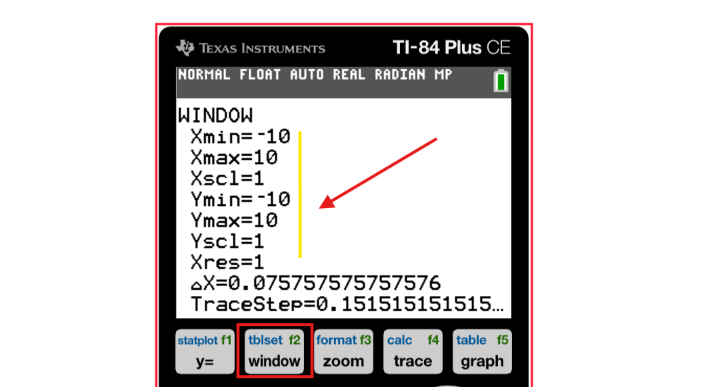
If you want to set a specific range, press WINDOW. Here, you can change the Xmin, Xmax, Ymin, and Ymax values to control the visible area on the x-axis and y-axis. To view the desired portion of the graph, adjust these values.
After plotting a graph, you can use the TRACE function to view the coordinates of different points. Press TRACE on the graph screen, then use the arrow keys to move the cursor.
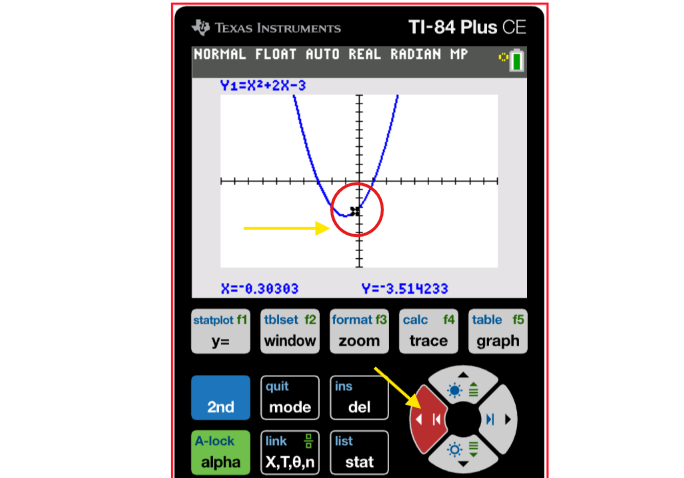
The calculator will display the selected point’s x and y coordinates. This is useful when you need to find the approximate value of a specific point on the graph.
Check these important settings first if your TI-84 calculator is not generating the desired results:
If the graph is missing or appears in the wrong position, try ZOOM → 6 as a quick first step.
If you don’t have a physical calculator, practicing with a TI-84 online calculator in your browser is a convenient option. It works like an online graphing calculator, allowing you to practice basic calculations and graphing functions easily.
Instead of memorizing each function separately, practice by completing a full task. For example, enter an equation, view its graph, adjust the view using ZOOM or WINDOW, and then check its points with the TRACE function.
When solving graphing questions, make a habit of checking the window settings after entering the equation. For trigonometry questions, always verify the degree or radian mode.
The fastest way to get comfortable is to actually work through problems rather than memorize keys. Pick a few practice equations, graph them, and adjust the window until it becomes routine.
Definitely, you can practice calculations and graphing with the TI-84 calculator online via your browser.
Enter the equation while pressing Y=, then press GRAPH. If the graph isn’t visible properly, try ZOOM → 6:ZStandard.
Press MODE, choose Degree or Radian, and then press 2nd → MODE to return to the home screen.
Press TRACE on the graph screen, and move the cursor with the arrow keys. It will allow you to check the x and y values at different points.
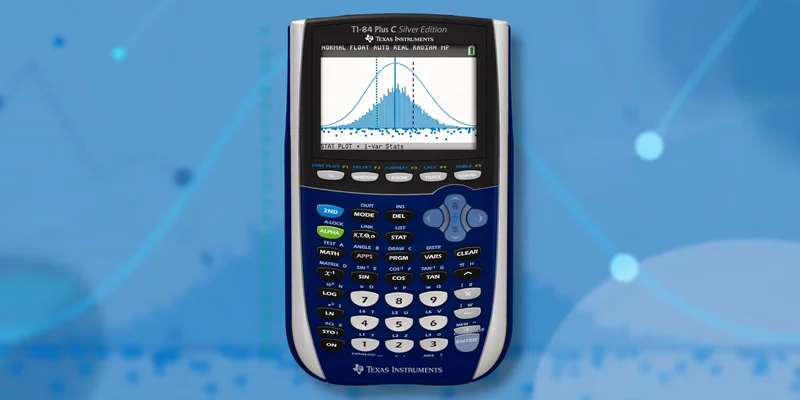
A list of numbers may seem innocuous until a statistics problem asks you to find three different results from it. The mean is familiar, but median and standard ...
TI-84 Calculator Online, along with the TI-83 Plus, TI-89 CAS graphing calculator, online graphing calculator and TI-30XS scientific calculator, provides students with versatile digital tools for solving equations, plotting graphs, and handling complex math problems. These calculators can be used directly in any browser without installation, making them perfect for math and science students looking for quick and easy solutions.


© 2026 — Revision. All Rights Reserved.