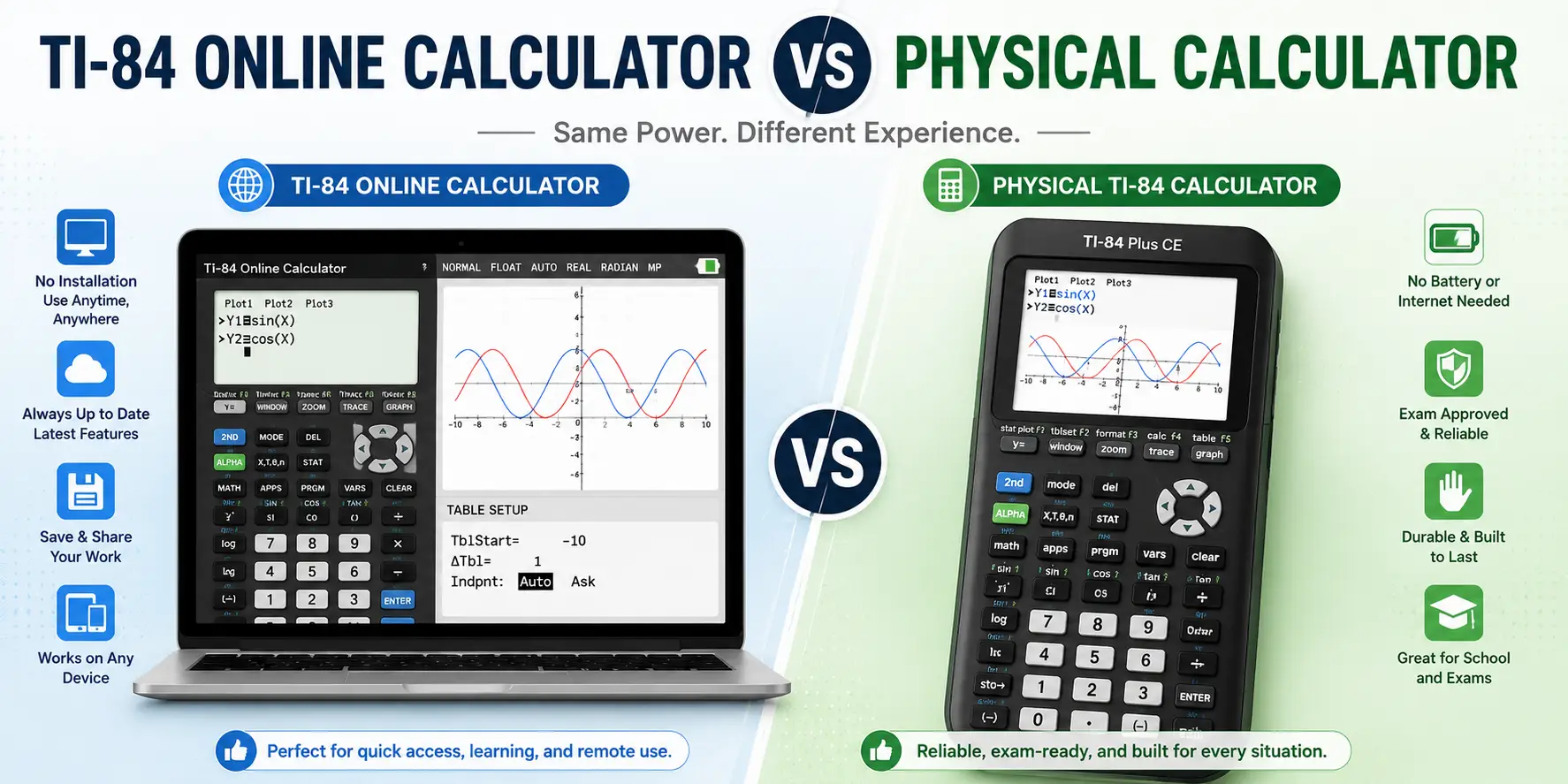

Solving equations with multiple steps can be difficult to understand. A graphing calculator can help you solve equations quickly and easily. The TI-84 can help you check your work, view equations as graphs, and use different solving methods.
\nIn this article, you will learn how to solve equations using methods available on the TI-84 calculator. Each method includes clear, easy-to-follow steps. You will also learn how to practice these methods with a TI 84 calculator online.
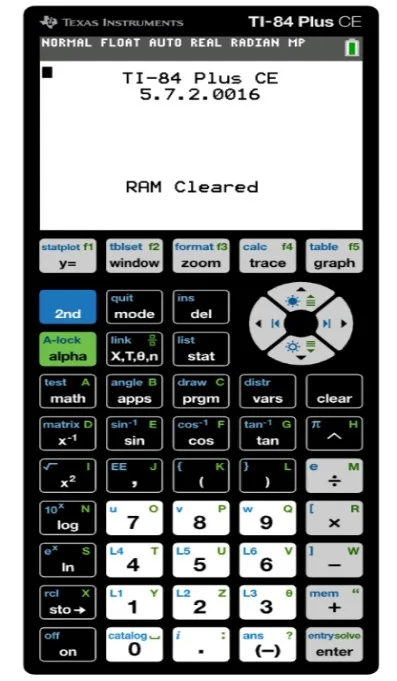
\nA TI-84 is a very popular graphing calculator used for a wide variety of math problems. It is used for algebra, graphs, statistics, and other complex equations. The graphing parts are especially helpful for working with equations.
\nThe calculator allows you to enter a function and graph it on a coordinate plane where you can find the intersection and zeros of the graph. A TI-84 calculator can even be used to check homework problems.
\nOverall, a ti 84 calculator is a versatile and helpful calculator that can be used for almost any type of math problem. A ti84 is also useful for students who need quick calculations during math practice.
\n|
\n Function \n |
\n
\n Main Use \n |
\n
|
\n Y= \n |
\n
\n Enter equations and functions \n |
\n
|
\n Graph \n |
\n
\n Display functions visually \n |
\n
|
\n Trace \n |
\n
\n Explore points on a graph \n |
\n
|
\n Intersect \n |
\n
\n Find where two graphs meet \n |
\n
|
\n Zero \n |
\n
\n Find x-intercepts \n |
\n
|
\n Math \n |
\n
\n Access mathematical functions \n |
\n
|
\n Solver \n |
\n
\n Numerically solve equations without graphing \n |
\n
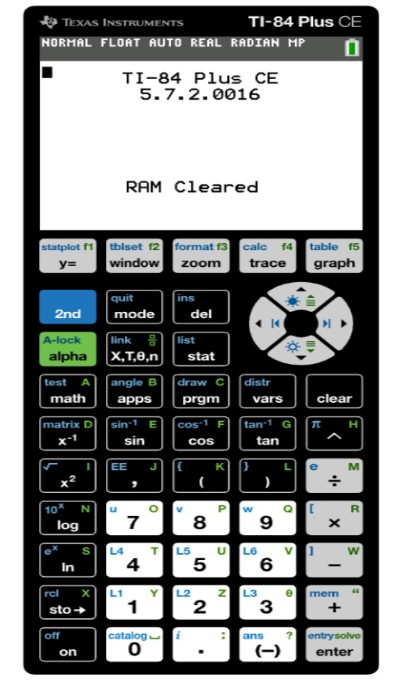
A ti-84 is especially useful when comparing two functions visually.
\nLet's see how to solve
\n2x + 3 = 11
\nFirst, press the Y= button on your calculator and type in 2X + 3 into Y1 and 11 into Y2.
\nNow both sides of the equation are entered on the calculator.
\n\n
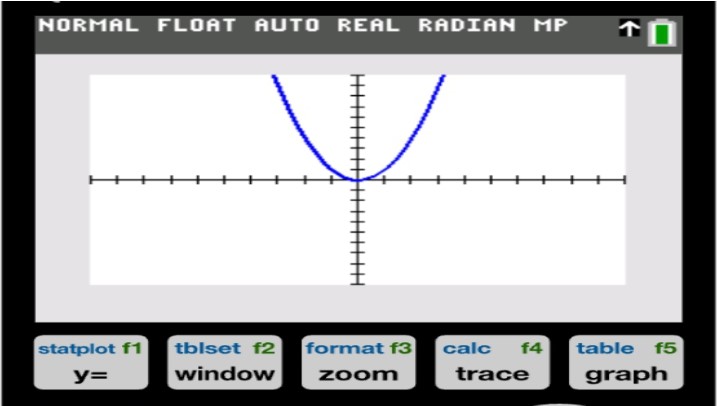
Press the Graph button to display both functions. You should see two lines on the screen. They will meet at one point. This point will be your answer to the equation.
Step 3: Finding the Intersection
\nPress 2nd, then TRACE to open the CALC menu. Select 5: Intersect. The calculator will prompt you three times:
\n"First curve?" Press ENTER to confirm.
\n"Second curve?" Press ENTER to confirm.
\n"Guess?" Move the cursor near the intersection point and press ENTER.
\nThe calculator will then display the coordinates of the intersection. The x-value of the intersection will be your answer. For this example, the answer is x = 4.
\nThe Zero Function is good to use when your equation is equal to zero.
\nFor example:
\nx² − 9 = 0
\nEnter the equation into Y1.
\nY1 = X² − 9
\nThen graph it.
\nNow you need to find where it crosses the x-axis.
\nPress 2nd then TRACE.
\nThen select 2: zero.
\nGo to the left of where it crosses the x-axis.
\nThen press ENTER.
\nGo to the right where it crosses the x-axis.
\nThen press ENTER again.
\nThen press ENTER one more time to guess the answer.
\nThe solution will appear on the screen. Repeat these steps to find the other solution.
\nThe solutions are x = -3 and x = 3.
\nThe TI-84 also provides another method for solving equations with its numerical solver. This method is useful when graphing is unnecessary. Press MATH to access the mathematics menu, and select the option for the solver. Make sure to write your equation in standard form, then enter it into the solver.
\nGive the calculator a starting value if requested. Then choose the option to solve for X. The calculator will then display the numerical answer. Always test your answer in the original equation.
\nDifferent equations can be solved using different approaches. The following guide should help you choose the right method.
\nGraphing: A ti 84 graphing calculator can help show the relationship between two functions.
\nIntersect helps identify where two graphs meet.
\nZero can be used to find the x-intercepts.
\nSolver is useful for finding numerical solutions.
\nUsing the above strategies can help one solve equations accurately without too much hard work.
\nYou can practice these methods without owning a physical calculator. Ti 84 online options give students another convenient way to practice. A graphing calculator online can help students learn calculator functions. It also lets students practice without a physical device.
\nYou can use an online Texas Instruments TI-84 calculator https://ti-84calconline.com/ to practice on the computer. A TI-84 calculator online can be helpful when you are studying on a computer. Ti84 online practice can help students become familiar with calculator functions.
\nLearning to use a TI-84 can make solving algebra problems faster and easier. Whether you graph, find zeros, or use the numerical solver, the goal is the same: understanding how you reached the answer, not just getting it. The more you practice, the more natural these methods become.
Tip: for symbolic equation solving, the TI-89 calculator online with CAS can solve equations exactly. Step-by-step key sequences are also covered in our TI-84 manual.

Learn how to use a TI-84 calculator with this complete beginner's guide covering the interface, calculations, graphing, and essential settings.
What We Are?
TI-84 Calculator Online, along with the TI-83 Plus, TI-89 CAS graphing calculator, online graphing calculator and TI-30XS scientific calculator, provides students with versatile digital tools for solving equations, plotting graphs, and handling complex math problems. These calculators can be used directly in any browser without installation, making them perfect for math and science students looking for quick and easy solutions.


© 2026 — Revision. All Rights Reserved.